If your Riot Client is not opening, close every Riot game, press Ctrl + Shift + Esc and end any remaining Riot Client tasks in Task Manager. Restart your PC and launch Riot Client again. If nothing happens, try opening the installed RiotClientServices.exe instead of the shortcut. A one-time administrator test can help identify a permissions problem.
If the launcher opens but cannot sign in, update or start League of Legends, check Riot’s service status and note the exact error before reinstalling. The right fix depends on where the launch fails. A Riot Client window that never appears is different from a frozen login screen, a failed update or League of Legends refusing to start after you press Play. These steps cover Windows 10 and Windows 11, with separate guidance for macOS and other Riot PC games.
How to fix Riot Client not opening: quick fixes
Start with these five checks. Test the launcher after each change so you know what actually solved the problem.
- Close Riot Client completely. Exit any open Riot games, then press Ctrl + Shift + Esc to open Task Manager. End remaining Riot Client and League processes, including
RiotClientServices.exeif present. - Restart Windows. Choose Start > Power > Restart. A restart can clear a stuck session and complete pending system updates. Choose Restart rather than shutting down and switching the PC back on.
- Open the correct shortcut. Search for Riot Client or League of Legends in the Start menu. If a pinned shortcut fails, try the installed Riot Client instead.
- Check for an outage. Visit Riot Games Service Status and select League of Legends and your region. The League of Legends server status guide explains how to distinguish outages from local problems.
- Read the exact error. If a message appears, write down the code or take a screenshot. A VAN error, a failed update and a missing launcher window need different fixes.
If the client opens normally after these checks, stop there. If it still fails, use the symptom table below to choose the next fix instead of changing every setting or reinstalling immediately.
Why is Riot Client not opening?
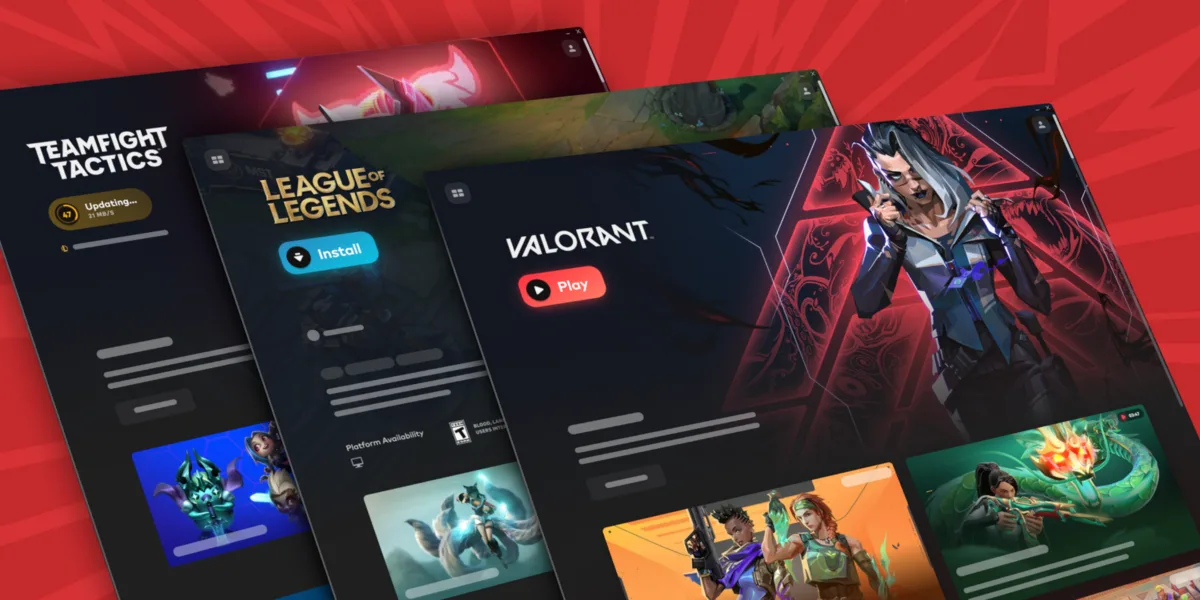
Riot Client is the shared launcher responsible for account sign-in, game updates and launching Riot’s PC titles. A failed shortcut, an unresponsive background process or a damaged installation can stop the window from appearing. A firewall or connection issue is more likely to interfere once the client tries to sign in or download an update.
Riot’s game-launch troubleshooting guidance identifies corrupted files, conflicting applications and graphics drivers as potential causes; permissions can also interfere with updates and startup. These are possible explanations, not a diagnosis of every launcher failure.
Why League of Legends opens Riot Client first
Under Riot’s 2026 launcher changes, desktop game shortcuts are being redirected to the corresponding game page in Riot Client, even when the game is already updated and you are signed in. You then select Play. Seeing the launcher first is expected behavior, not an error. Riot is introducing this across its PC games in stages. The League Next guide covers the broader League client overhaul separately from the shared Riot launcher.
A launcher-wide problem may also affect VALORANT, Teamfight Tactics, 2XKO or other installed Riot PC titles. If only League fails after you press Play, focus on League’s installation, requirements and anti-cheat rather than assuming the shared launcher is broken. Mobile versions and console editions have different troubleshooting procedures.
Riot Client launch problems and the best first fix
| Symptom or error | Possible cause | First fix | What to try next |
|---|---|---|---|
| Nothing happens when clicking Riot Client | Stale shortcut, stuck process or damaged launcher | End Riot tasks and restart Windows | Test the installed executable and administrator permissions |
| Riot Client runs in Task Manager but no window appears | Hidden window or stalled background session | Check system tray, then close Riot tasks | Restart and test software conflicts |
| Riot Client opens and immediately closes | Permissions, software conflict or damaged files | Restart and try administrator access | Check Windows updates and perform a clean boot |
| Stuck on loading or login | Network, authentication or software conflict | Check service status and restart | Test another connection and review firewall settings |
| Blank or black launcher window | Possible rendering or background software issue | Restart the client | Update graphics drivers and test without overlays |
| Failed to Launch / Something unusual happened | Launch blocked by software or outdated or damaged files | Restart and note the complete message | Follow the specific Riot error guide and test a clean boot |
| Riot Client cannot update | Insufficient disk space, connection or permissions | Check space and service status | Administrator test, firewall check or targeted patch troubleshooting |
| Riot Client opens but League does not launch | Game files, requirements or Vanguard | Check for errors and finish updates | Full Repair, then game-specific troubleshooting |
| VAN error or Vanguard restart notice | Anti-cheat or required system configuration | Restart and identify the exact error | Follow the matching Vanguard instructions |
| 0xc0000005 at startup | Possible security-software block | Check firewall and antivirus history | Use Riot’s code-specific guide |
| Play is greyed out | Update, system requirements or pending Vanguard restart | Read the text beside Play or hover over it if available | Resolve the stated requirement |
Use the table to skip fixes that do not match your symptoms. For instance, a DNS change is unlikely to repair an executable that Windows cannot start, while a game-file repair is unavailable if Riot Client never opens. For errors outside these startup symptoms, see the League of Legends troubleshooting hub.
1. Fix Riot Client running in the background but not opening
Windows may still show Riot processes even after you close the visible launcher. This alone is not a fault: Riot Client can remain active while a Riot game is running. If all games are closed and selecting the launcher repeatedly produces no window, a stalled session is a reasonable possibility.
- Close any Riot games normally. Check the notification area beside the Windows clock for the Riot icon, including the hidden-icons arrow. Right-click the icon and choose Exit if offered.
- Open Task Manager with Ctrl + Shift + Esc. On Windows 10, select More details if the compact view appears.
- Under Processes, select any remaining Riot Client or League of Legends application and choose End task.
- Open Details and look for remaining Riot or League processes, such as
RiotClientServices.exeandLeagueClient.exe, as well asRiotClientUx.exeif present. End the relevant processes only after confirming that no Riot game is in use. - Close Task Manager and launch Riot Client once. If it still fails, restart Windows and try again.
Riot also supports launching games from the Windows system tray or Mac menu bar. If the tray icon responds while the desktop shortcut does not, try opening the game from the tray. The problem may be limited to the shortcut or window rather than the entire launcher.
Riot also recommends closing Riot Client processes in its login session troubleshooting instructions. Do not end unfamiliar Windows services, Vanguard components or other games’ processes just to make the list shorter. Avoid interrupting an update that is actively progressing.
If you see a Riot process appear briefly and then disappear on every attempt, note the time and any error. A process that exits immediately needs different troubleshooting from one that stays in Task Manager indefinitely. Save this distinction for your support ticket if the later steps do not help.
2. Open Riot Client directly and run it as administrator
If the Start menu shortcut has become invalid, open File Explorer and locate Riot Client. The usual Windows installation path is:
C:\Riot Games\Riot Client\RiotClientServices.exe
If you installed Riot games on a different drive, use that installation location instead. You can also right-click a Riot shortcut, open Properties and inspect its Target field. Preserve any existing shortcut arguments; do not add commands from forum posts. If the executable is missing, check security software history and collect logs before considering a reinstall. Never download a replacement executable from an unofficial website.
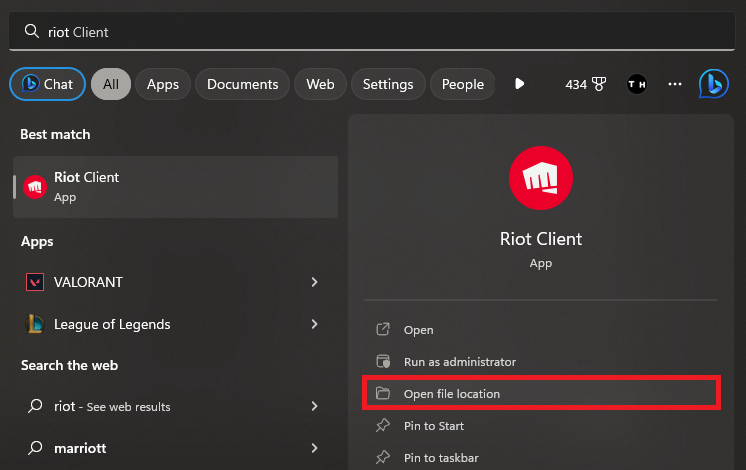
How to run Riot Client as administrator
- Close Riot Client and any running Riot games.
- Right-click the Riot Client shortcut or its verified installed executable and choose Run as administrator.
- Approve the Windows User Account Control prompt only if it identifies the expected Riot application.
- Check whether the launcher opens and can update or start League.
If the one-time test works and the problem returns when launching normally, Riot’s administrator guide describes how to set the shortcut’s Properties > Compatibility option to run with administrator privileges. Apply the change and test again. Remove the setting if it does not help.
Do not configure only the game executable to run as administrator while leaving Riot Client at a different privilege level. Riot warns that this can interfere with launching. Administrator access can resolve certain file or update permission problems, but it does not fix an outage or corrupt installation.
What if Windows says it cannot access LeagueClient.exe?
If Riot Client opens but Windows specifically reports that it cannot access the League game client, Riot’s LeagueClient.exe error guide recommends clearing the administrator checkbox on LeagueClient.exe itself. This is different from the earlier Riot Client administrator test. Right-click LeagueClient.exe in the League installation folder, open Properties > Compatibility, clear the administrator checkbox if enabled and retest using the normal Riot launcher. Do not change file ownership or grant broad permissions.
3. Fix Riot Client stuck loading, freezing or showing a black screen
A visible window means the launcher has started at least part of its initialization. Determine whether the login screen is blank, the entire application is frozen, or the game window turns black after clicking Play. The last case is not the same as a black Riot Client window.
- Close and restart the launcher using the Task Manager procedure if the interface is unresponsive.
- Check service status and test your connection, particularly if the login screen or game page never finishes loading.
- Install relevant Windows updates and update your graphics driver from the official GPU manufacturer if the window is blank or distorted.
- Exit optional overlays, screen recorders and other background apps one at a time, then test again.
- If the launcher responds and you can sign in, use its repair feature for the affected game. If it does not respond, continue with the software-conflict checks below.
Riot’s loading-screen troubleshooting guide recommends testing connectivity, background software, drivers and game files. If League’s match window goes black while the Riot and League clients otherwise work, use Riot’s match loading black-screen guidance instead. If League only fails after champion selection, Riot also has a dedicated post-champion-selection guide. In that situation, a launcher reinstall is not the first thing to try.
Riot Client opens but its window is missing
If the taskbar shows the application but you cannot see it, select it with Alt + Tab. If you recently disconnected a monitor, try Windows + Shift + Left Arrow or Right Arrow to bring the selected window onto another display. This is a Windows display check, not a Riot repair procedure. If the application is not responding or no window exists, use the background-process and graphics-driver steps instead.
4. Repair League of Legends through Riot Client
Missing or damaged game files can prevent League from launching after Riot Client has loaded. Riot Client’s built-in Full Repair Tool can check and repair those files without reinstalling the entire game. It requires a functioning launcher and access to its settings.
- Open Riot Client and sign in.
- Select the profile icon in the top-right corner.
- Open Settings.
- Choose League of Legends or another affected game that offers the repair option.
- Select Repair and follow the on-screen instructions. Wait for the process to finish before attempting to play.
The steps follow Riot’s official Full Repair Tool instructions. If you cannot open Riot Client or reach Settings, this method is not available. Do not confuse it with the standalone Riot Repair Tool (RRT).
| Tool | Purpose | When to use it |
|---|---|---|
| Riot Client Full Repair Tool | Repairs missing or corrupted files for the selected game | Riot Client opens and you can access Settings |
| Riot Repair Tool (RRT) | Collects logs for Riot Player Support | A launch, connection or game error persists, even if the launcher cannot be opened |
5. Check Windows updates, permissions and compatibility
A supported Windows installation matters for League and Vanguard. Even if a game previously worked, an outdated build or a new driver conflict can affect startup. Riot’s League of Legends system requirements distinguish Windows 10 build 19041 or later from Windows 11, which requires TPM 2.0. League also requires x64 Windows, SSE 4.2 and DirectX 11 feature level 11_0. Check the official requirements for changes; the launcher opening does not mean the computer meets the game’s requirements.
- Press Windows + R, type
winverand press Enter to check your Windows release and build. - On Windows 11, open Settings > Windows Update. On Windows 10, open Settings > Update & Security > Windows Update. Install applicable updates and restart when prompted.
- If Riot Client or the game executable is configured to emulate an older Windows version, open the relevant file’s Properties > Compatibility and clear Run this program in compatibility mode for. Check both the launcher and game. Leave unrelated settings unchanged.
- If Windows reports access denied, confirm you are using the correct installation and that you have permission to access it. On a managed PC, contact the administrator instead of changing system ownership.
Riot specifically identifies compatibility mode as a possible cause of the “Can’t launch the game yet” error. Do not enable Windows 7 or Windows 8 compatibility mode as a routine fix. Microsoft’s standard Windows 10 support ended on October 14, 2025. This does not by itself mean League stopped supporting Windows 10. Check Riot’s requirements separately, and use an applicable security-update program or upgrade to a supported version of Windows.
If Riot Client closes immediately without an error
Open the Start menu and search for View reliability history. Find a critical application event around the time of the failed launch and open its technical details if available. Record the failing application, module and exception code. A missing entry does not rule out a launch failure, and a module name alone does not prove which software caused it.
If other applications also crash, investigate Windows or driver stability rather than repeatedly reinstalling League. If only Riot Client fails, include the event details with your Riot logs.
How to check a greyed-out Play button
If Riot Client displays a game page but Play is unavailable, check whether it is downloading or verifying an update, requesting a restart or showing a hardware warning. Riot notes that unsupported DirectX hardware can leave League’s Play button unavailable. To check your GPU, press Windows + R, enter dxdiag and inspect Feature Levels under the Display tab. A DirectX version number alone does not confirm that the GPU supports feature level 11_0. Install an appropriate official driver if needed; a driver update cannot add hardware support that the GPU lacks.
Windows 10 and Windows 11 launcher troubleshooting is largely the same, but Vanguard requirements may differ. If the PC no longer meets League’s requirements, reinstalling will not resolve that incompatibility.
6. Check firewall, antivirus and background software
Security tools can prevent a legitimate Riot executable from running or connecting, while overlays and system utilities may conflict with games. Make targeted changes, keep Windows protection active and test after each adjustment.
Allow the correct Riot files through Windows Firewall
- Open Start and search for Windows Security.
- Select Firewall & network protection, then Allow an app through firewall.
- Choose Change settings and check whether the legitimate Riot Client and affected game are already listed.
- If an exception is needed, select Allow another app, browse to the genuine executable in your installation and allow it on the appropriate trusted network profile only.
- Save the change and test Riot Client. Remove an exception you added if it was unnecessary.
Riot’s firewall configuration guide identifies the default launcher and game paths. These are examples for a standard Windows League installation; use your actual installation location.
| Application | Default executable location |
|---|---|
| Riot Client | C:\Riot Games\Riot Client\RiotClientServices.exe |
| League client | C:\Riot Games\League of Legends\LeagueClient.exe |
| League game | C:\Riot Games\League of Legends\Game\League of Legends.exe |
| League interface and renderer | C:\Riot Games\League of Legends\LeagueClientUx.exeC:\Riot Games\League of Legends\LeagueClientUxRenderer.exe |
| Vanguard (if required for the affected game) | C:\Program Files\Riot Vanguard\vgc.exeC:\Program Files\Riot Vanguard\vgm.exe |
Do not open router ports or disable the entire firewall as a first step. Allowing a verified app is narrower than opening a port, and a launcher that fails before making a connection may not need a firewall change at all.
Check antivirus alerts and protection history
- Open your antivirus protection history or quarantine and look for a detection at the time the launcher stopped working.
- Update your security software and its definitions, then perform a scan if the detection is suspicious.
- If the file is confirmed to be an official Riot file and the security vendor identifies the block as a false positive, follow its instructions for a narrow exception.
- If you cannot verify a flagged file, do not restore it or allow it to run. Ask Riot Support or the security vendor for help.
Riot’s security software guidance warns against restoring confirmed threats. Never exclude an entire drive or switch off antivirus protection permanently just to run League.
What does error 0xc0000005 mean?
If Windows displays 0xc0000005 when Riot Client or a Riot game starts, a blocked application file is one possibility. Riot’s dedicated 0xc0000005 troubleshooting page identifies security software as a potential contributor. Review your firewall configuration and security history first. If a third-party security product appears to be responsible, contact its vendor or Riot for a targeted test rather than uninstalling protection indiscriminately. The error alone does not establish that antivirus is at fault.
Perform a clean boot without disabling Vanguard
First exit optional apps such as recording tools, third-party overlays, hardware monitoring utilities and gaming boosters. If that does not reveal the conflict, a clean boot helps narrow down which startup software is involved. Save your work first and make a record of enabled services and startup apps so you can restore them.
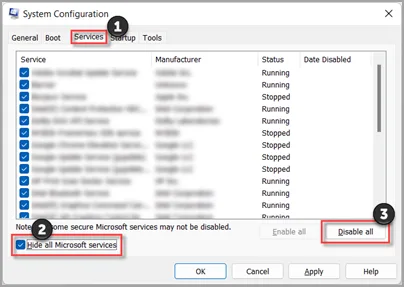
- Press Windows + R, enter
msconfigand select the Services tab. - Select Hide all Microsoft services before making any changes.
- Following Riot’s clean-boot approach, disable nonessential third-party services. If using Disable all, re-enable
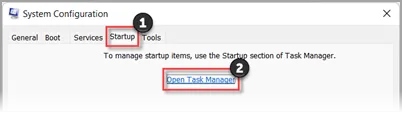
vgcfor Vanguard-dependent games and keep required security and essential device services enabled before applying changes. - Go to the Startup tab and open Task Manager. Record currently enabled entries, then disable optional startup apps for the test.
- Apply the changes, restart Windows and test the launcher and League.
- If the problem disappears, restore the disabled services and applications in small groups, restarting and retesting until you identify the conflict. Restore the original startup configuration after troubleshooting.
Riot’s clean-boot instructions explicitly preserve vgc because games that rely on Vanguard cannot run without it. The Microsoft clean-boot guide explains how to return Windows to normal startup. Do not change advanced boot settings, and avoid this procedure on a managed PC without IT approval.
7. Fix Riot Client login and connection problems
Network troubleshooting is most useful when the launcher opens but cannot sign in, retrieve game information or download updates. A local process that never starts needs a different investigation.
- Confirm that other websites work and that Riot has not reported a service incident for your game or region.
- Restart the client and, if necessary, restart your router when it will not interrupt others. Try Ethernet instead of Wi-Fi if possible.
- Disconnect a personal VPN or proxy temporarily if you use one and test on your usual trusted network. Do not bypass a required workplace network policy.
- Set Windows date and time correctly, using Settings > Time & language > Date & time and automatic synchronization where available.
- If the login or update connection still fails, review the firewall exceptions and test a different trusted internet connection to isolate a network-specific issue.
When to change or flush DNS
DNS helps Riot Client locate online services. If the launcher opens but has trouble reaching them, Riot suggests testing a public DNS resolver. Start with a cache refresh rather than replacing every network setting.
- Open Start, search for Command Prompt and run it as administrator.
- Enter
ipconfig /flushdnsand press Enter. - Close and reopen Riot Client, then check the connection.
If necessary, follow Riot’s Windows and macOS DNS configuration instructions. Record your original DNS settings before changing them, particularly if you use a custom resolver. Restore them if the change does not help.
If the Riot Client loads but rejects your credentials, try signing in through the official Riot Support website. Use its account recovery options if your login details are the problem. If the password field is the only issue and the QR Code option is visible, Riot also supports signing in with Riot Mobile. That requires the launcher to reach the login screen; it cannot repair a launcher that fails to start. Do not share your password or multi-factor authentication codes with anyone offering to fix your launcher.
8. Fix Riot Client not updating or showing “Failed to Launch”
An update failure can prevent an installed game from reaching its playable state. A progress indicator that pauses briefly is not necessarily a stalled update, since the client may be verifying or writing files.
- Check that the drive containing Riot Client and the game has enough free space. In Windows, open File Explorer > This PC to inspect the drive.
- If the update has genuinely stalled, close the launcher, restart Windows and try again.
- Test administrator access if the installer cannot write files, and check whether security software has recorded a block.
- If the client can open, finish any pending updates and try repairing the affected game. For League patching error 004, follow the dedicated League of Legends Error Code 004 guide.
The message “Failed to Launch: Something unusual happened” can have several causes, including damaged files and conflicting background software. Riot’s specific Failed to Launch instructions identify the Windows DevOverrideEnable setting as another potential cause of that exact launch or update error. Do not apply registry changes simply because the launcher will not open; if the exact error persists after the reversible steps, ask Riot Support to guide any advanced changes.
Should you clear Riot Client’s cache?
Clearing local game data may help with a specific critical error or game-client failure, but it is not the same as repairing the shared launcher. Riot’s game-launch guidance includes cache removal for certain system errors. Before removing anything, collect logs and back up local settings. Avoid deleting the entire Riot Games folder in AppData or ProgramData, especially when multiple Riot games are installed. If Riot Client itself never opens, ask support which exact folder is safe to reset for your installation.
9. Check whether Riot Vanguard is blocking League of Legends
Riot Vanguard is Riot’s anti-cheat system. It can block League of Legends from launching even when Riot Client itself opens correctly. The launcher change introduced in 2026 does not change which games require Vanguard.
- Check whether Riot Client can open and whether the failure occurs after selecting Play.
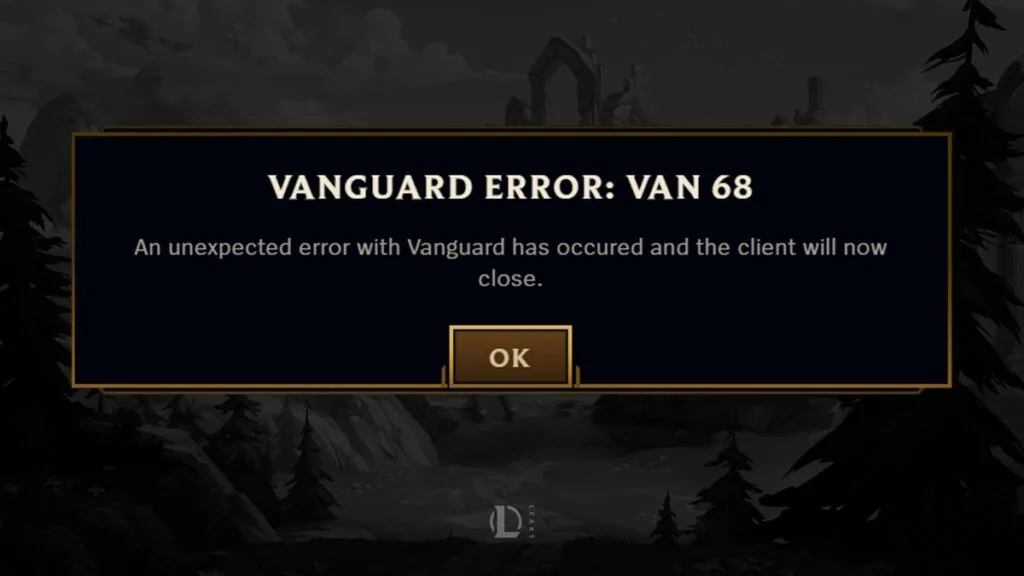
- Record any code beginning with VAN or message requiring a restart or specific security configuration.
- Restart Windows and follow the instructions for that exact code in the Vanguard error codes guide.
- Only reinstall Vanguard when the specific error or Riot Support recommends it. Other installed Riot games that require Vanguard may be affected by its removal.
Do not disable Secure Boot, TPM, Memory Integrity or other security protections as a general launcher fix. Some Vanguard errors indicate that a required protection needs to be enabled, and requirements can depend on Windows version and system configuration. Vanguard-related steps should be based on the exact message, not speculation.
Vanguard Pre-Check and a stopped vgc service
With Vanguard Pre-Check enabled on an eligible PC running Windows 11 25H2 or later, Vanguard can start on demand when you launch a supported game and stop after you finish playing. Vanguard not running while no game is open is therefore not necessarily a fault. Pre-Check is optional and has additional security requirements; it is not a prerequisite for ordinary League startup.
If you do not use Pre-Check and a Vanguard error indicates the service is not starting, Riot’s vgc service guide explains how to open Services (services.msc), find vgc, set its startup type to Automatic, start it and restart the computer. Do not change that setting solely because the Riot Client is not visible.
VAN 7018 and VAN 7020: game-file and launcher conflicts
If Riot Client loads but League displays one of these Vanguard messages, focus on the game executable and the software interacting with it, rather than the shared launcher.
| Error | What Riot identifies | What to try |
|---|---|---|
| VAN 7018 | League executable signature cannot be validated | Close Riot applications, clean boot and repair League. Reinstall the game if necessary. |
| VAN 7020 | Possible conflict with a third-party launcher or other software | Close the game and Riot Client, then use the official launcher without optional third-party tools. |
Avoid downloading replacement League executables or attempting to bypass Vanguard’s validation. If the official repair and software-conflict steps do not work, attach logs to a Riot Support ticket.
Your game requires a system restart to play
A restart prompt after Vanguard installation is expected. If it repeatedly returns after a proper restart, follow Riot’s restart-required error guide. If the code-specific instructions call for reinstalling Vanguard, remove it using the Windows installed-apps list and follow Riot’s Vanguard reinstall instructions. Relaunch the affected game to install Vanguard again, restart when requested and test in Practice Tool or a custom game before joining a matchmade game.
If League opens normally but the Public Beta Environment does not, check the official PBE access instructions. Riot directs PBE users to select the appropriate environment from the menu next to Play after signing into an eligible account. A PBE-only issue does not necessarily indicate a broken shared launcher. The League of Legends PBE guide covers account eligibility, environment selection and installation.
10. Reinstall Riot Client or League of Legends safely
Reinstallation becomes reasonable when the launcher or game still fails after a restart, permissions check, targeted conflict testing and any accessible repair. If the problem affects every installed Riot PC game, collect launcher logs before removing shared components.
Back up useful files before uninstalling
| Files or data | What to do |
|---|---|
| Riot account, skins, purchases and progression | Stored with your Riot account; uninstalling the application does not delete the account. |
| Local League configuration | Copy the Config folder from your League installation, normally C:\Riot Games\League of Legends\Config, if you want to preserve settings. |
| Replays and highlights | Check your Documents\League of Legends folder or your configured replay and highlight locations. Copy anything you want to keep. |
| Other Riot games and shared components | Leave their installation folders and shared Riot Client or Vanguard files alone unless a full removal is necessary. |
| Diagnostic logs | Collect logs before uninstalling so support can inspect the original failure. |
A fresh installation may recreate local settings. Keep a backup separately and test the new installation before restoring configuration files, especially if a corrupted configuration was suspected.
Uninstall and reinstall on Windows
- Completely close Riot Client and all running Riot games. Restart if Windows reports that a file is in use.
- Open Settings > Apps > Installed apps on Windows 11, or Settings > Apps > Apps & features on Windows 10.
- Select League of Legends and choose Uninstall. Follow the prompts to remove the affected game.
- If you intend to remove Riot Client itself, check the installed Riot games first. Uninstall the dependent games only if you want to remove them as well, then use the Riot Client uninstall entry if available. If the entry is missing or Windows refuses removal, contact support for the appropriate shared-client procedure.
- Restart Windows and download a fresh installer from the official League of Legends download page. The game installer supplies Riot Client as needed.
- Follow the installer, let updates and required components finish, restart when requested, then test Riot Client and League before copying back old settings.
See the League of Legends uninstall guide for additional removal and backup details and the League of Legends download guide for installation help. Riot’s official uninstall documentation also covers clean removal for individual titles, but a standard uninstall is the safer first approach when other Riot games share your installation.
Avoid deleting the entire Riot Games directory, shared AppData folders or registry entries as a routine fix. Do not use registry cleaners or third-party repair utilities. If you need a launcher-only reinstall while preserving other games, ask Riot Support for a procedure appropriate to your installation rather than assuming shared files can be removed safely.
How to test the fresh installation
- Open Riot Client and sign in before restoring backed-up files.
- Allow any required updates and anti-cheat installation to finish. Restart when prompted.
- Select League of Legends and verify that it reaches the game client. Test a custom game or Practice Tool before entering a normal queue.
- If the clean installation works, restore personal files selectively. Do not restore a configuration file suspected of causing the original fault.
If reinstalling League fixes League but another Riot game still fails, troubleshoot that game separately. If every game remains unavailable, send the shared launcher logs to support instead of downloading the same games again.
After the game is stable, the League of Legends settings guide and LoL guides can help you reconfigure controls and performance settings after a reinstall.
Riot Client not opening on Mac
Windows Task Manager, Windows Firewall, msconfig and Vanguard Windows troubleshooting do not apply to macOS. For League of Legends on Mac, begin with the Mac-specific steps below.
- Quit Riot Client and League of Legends. If an application is unresponsive, use Apple menu > Force Quit and select the affected application.
- Restart the Mac, open League from Applications and check Riot’s service status.
- Check macOS updates and Riot’s current Mac requirements for the game. On a loading or login issue, use the Mac instructions in Riot’s DNS or loading-screen guide. For connection problems, Apple menu > System Settings > Network > Firewall lets you check application rules. If the firewall is enabled and blocking League, use the Options panel to allow the legitimate League application and Riot Client if listed separately. Do not disable the firewall as a routine fix.
- If background apps appear to interfere, follow Riot’s Mac clean-boot equivalent: record login items, temporarily remove nonessential items and restore them individually after testing.
- If reinstalling League is necessary, back up local files, quit Riot applications, move League of Legends.app from Applications to Trash, restart and use Riot’s official Mac installer.
For a game that crashes or shows a blank window on macOS, use Riot’s Mac game crash instructions. Avoid Windows-only fixes and do not change macOS security settings to force an unsupported game to run.
What to do if Riot Client still will not open
If the problem persists, especially if the client crashes silently or refuses to start after a fresh installation, stop making unrelated changes and collect diagnostic information. Riot Player Support can investigate the exact point of failure.
Collect logs with Riot Repair Tool (RRT)
- Visit Riot’s Riot Repair Tool download and instructions page and download the version for your operating system.
- Install and open RRT. On Windows, right-click the tool and run it as administrator.
- Select League of Legends or the affected Riot game and let the tool gather the diagnostic information.
- Locate the ZIP archive created by RRT and attach it to a new or existing Riot Support ticket.
Despite its name, RRT is primarily a diagnostic log collector. It is separate from the in-client Full Repair Tool and should not be treated as a guaranteed launcher repair.
Collect Riot Client logs manually if needed
- On Windows, press Windows + R.
- Enter
%localappdata%\Riot Games\Riot Clientand press Enter. - If a Logs folder exists, copy it to a safe temporary location, then compress the copied folder into a ZIP archive.
- Attach the archive privately to your support ticket. Leave the original files intact.
The location follows Riot’s Windows network, system and log documentation. Mac users can consult the corresponding macOS log instructions and use Finder > Go > Go to Folder with ~/Library/Logs/Riot Games. A missing log folder is also worth mentioning, particularly if the client has never started successfully.
Include Windows hardware and crash diagnostics
If Riot Support needs more system information, press Windows + R, type dxdiag and press Enter. In DirectX Diagnostic Tool, select Save All Information and attach the resulting file privately to the ticket. For silent crashes, include the time and any exception code from Reliability Monitor. These details help support distinguish a launcher problem from a driver, hardware or game-file issue.
Submit a Riot Support ticket
Visit Riot Player Support and select the relevant technical issue. Sign in if prompted. Include enough information to reproduce the problem rather than just saying the client does not work.
- The affected game, region and whether other installed Riot games launch.
- Your operating system, Windows build or macOS version and relevant hardware details.
- The exact error message or a screenshot, including when the problem began.
- Whether Riot Client appears in Task Manager, reaches login, displays its game page or fails only after Play.
- The fixes you already tried and whether anything changed.
- The relevant RRT archive or Riot Client logs, shared privately through the support ticket.
Do not post your diagnostic archive publicly or include passwords, verification codes or other account secrets. Keep the same support ticket for follow-up so the troubleshooting history stays together.
Frequently asked questions about Riot Client not opening
Why is my Riot Client not opening?
Common possibilities include a stalled background process, permission problems, damaged files, software conflicts or a failed update. Start by closing Riot processes, restarting Windows and checking whether a specific error appears.
How do I fix Riot Client not launching on Windows 11?
End remaining Riot tasks in Task Manager, restart Windows, and open the correct Riot Client shortcut. If it still fails, check Windows updates, test administrator access and investigate software conflicts. Follow any specific VAN error rather than changing security settings at random.
Why is Riot Client running in Task Manager but not showing?
It may still be running in the background, or a previous session may have become unresponsive. Check the system tray and close all Riot games before ending Riot Client tasks. Restart the launcher once the old session has stopped.
Can I repair Riot Client without reinstalling League of Legends?
If the launcher opens, you can repair League’s files using Profile > Settings > League of Legends > Repair. This repairs the selected game, not necessarily the shared launcher itself. If Riot Client cannot open, use the startup checks or contact support before attempting a shared-client reinstall.
Will reinstalling Riot Client delete my League of Legends account?
No. Your account, purchases and progression are tied to your Riot account. However, reinstalling or removing local folders can affect settings, downloaded files, replays and highlights, so back up anything you want to keep.
Can Riot Vanguard prevent League of Legends from launching?
Yes. A Vanguard initialization, connection or security requirement error can block the game even when Riot Client opens. Restart your PC and follow the instructions for the exact VAN code. Do not disable required protections.
Why does Riot Client open but League of Legends will not start?
Check whether the game is still updating, whether Vanguard reports an error, and whether the installation meets Riot’s system requirements. If you can access Settings, try repairing League’s game files.
How do I contact Riot Support if Riot Client still will not open?
Open the Riot Support website in your browser and submit a technical support ticket. Include your operating system, the exact launch symptom, the steps already tried and a diagnostic ZIP from Riot Repair Tool if available.
Getting back into League without unnecessary reinstalls
The most useful clue is where startup stops. No launcher window points toward a local startup problem, while a visible but unusable login screen calls for service and connection checks. A working Riot Client that cannot start League shifts the focus to the game installation or Vanguard. Identifying that stage can save you a full download and avoid unnecessary changes to Windows.
If you have exhausted the relevant steps, send Riot the logs rather than repeatedly reinstalling the same files. For future issues, the League of Legends troubleshooting hub helps you identify the right fix for other errors and crashes. For a recurring patch failure, revisit the error 004 troubleshooting guide; for an anti-cheat message, use the Vanguard error codes guide. Both let you target the failure rather than repeating every launcher fix.