The best League of Legends settings make the game feel smoother, cleaner, and more consistent from the first wave to the last team fight. For most players, that means native resolution, Full Screen, VSync off, shadows off, quick cast on, attack move on cursor, auto attack off, a smaller HUD, and a larger minimap.
That is the short answer, but the full setup matters because small mistakes in League rarely come from one dramatic misplay. They usually come from tiny delays, missed clicks, unreadable fights, or a camera that never shows enough of the next play. The best League of Legends settings fix those problems before the game even starts.
This guide is updated for current menus, newer control options, and the settings players miss most often. It is built to help three kinds of players at once: someone who wants the best LoL settings in one copyable preset, someone who wants a competitive setup without turning the game into a blurry mess, and someone who wants to understand why certain settings keep showing up in League of Legends pro settings and LoL pro settings discussions.
Best League of Legends settings at a glance
If you want a fast starting point, use this setup first and then adjust one category at a time.
| Setting area | Recommended starting point | Why it works |
|---|---|---|
| Resolution | Native resolution | Keeps champions, health bars, and skillshots clear |
| Window mode | Full Screen | Usually feels cleaner and more responsive for ranked play |
| Frame rate cap | Match the highest stable refresh rate you can actually hold | Stable frames feel better than random spikes |
| Character quality | Medium or High | Keeps champions readable without wasting performance |
| Environment quality | Low | Removes visual noise where it matters least |
| Effects quality | Medium | Maintains spell clarity without overloading fights |
| Shadow quality | Off | Easy performance gain, less clutter |
| Anti-aliasing | Off | More frames, less unnecessary processing |
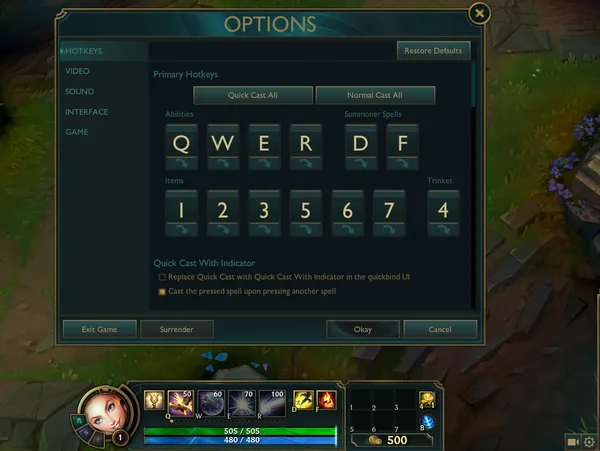
| Quick cast | On for all abilities | Removes an extra click from every cast |
| Attack move on cursor | On | Makes kiting and target selection more reliable |
| Auto attack | Off | Gives you better control in lane and around towers |
| HUD scale | 20 to 40 | Shows more of the map and less of the UI |
| Minimap scale | 60 to 80 | Improves map awareness without blocking too much space |
Best settings by goal
One reason so many settings articles feel incomplete is that they act like every player wants the same thing. They do not. A player on a gaming desktop, a player on older hardware, and a player on a Mac do not need identical tradeoffs. The best League of Legends settings depend on whether your priority is raw performance, visual clarity, or a middle ground.
| Preset | Who it is for | Core setup |
|---|---|---|
| Competitive preset | Ranked grinders, ADC players, and anyone who wants cleaner fights | Full Screen, native resolution, shadows off, environment low, effects medium, quick cast on, HUD 25, minimap 70 |
| Balanced preset | Players who want a clean game that still looks good | Full Screen or Borderless, native resolution, shadows off or low, character high, environment medium, effects medium, HUD 30, minimap 65 |
| Low-end PC preset | Anyone getting stutters in dragon fights, Baron fights, or crowded mid-game skirmishes | Full Screen, native resolution, shadows off, environment low, effects low, client low spec mode on, close client during game on |
| Mac preset | Mac players who want smooth performance first | Full Screen, native resolution, shadows off, environment low, effects low or medium, quick cast on, reduce background load, keep HUD small |
If you are not sure where to begin, start with the competitive preset. It is the safest default because it improves clarity without forcing the game into ugly low settings unless your system actually needs them.
Best League of Legends graphics settings and video settings
The best League of Legends graphics settings and League of Legends video settings should make champions, projectiles, and terrain easier to read, not bury them under extra effects. The best LoL graphics settings are usually the ones that strip out clutter first, then give detail back only where it actually helps.
For most players, the right baseline is simple. Keep the game at native resolution, turn shadows off, leave anti-aliasing off, and lower environment quality before you touch character quality. Champions and abilities decide fights. Background detail does not.
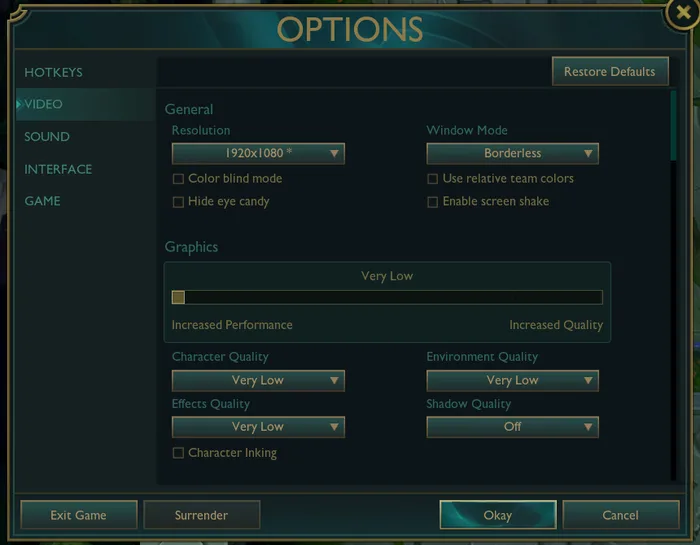
- Resolution: Native resolution is still the best starting point. It keeps the game sharp and avoids the muddy look that stretched or lower resolutions can create.
- Window mode: Full Screen is best for pure focus. Borderless is fine if you alt-tab often, but competitive players usually prefer Full Screen.
- Character quality: Medium or High is ideal. You want champions to stand out cleanly.
- Environment quality: Low is where most players get the best tradeoff. The map still looks fine, but fights become cleaner.
- Effects quality: Medium is a strong default. If your frames dip in 5v5 fights, lower it to Low.
- Shadow quality: Turn it off. This is one of the easiest wins in the menu.
- Anti-aliasing: Off, unless you have performance to spare and really care about smoother edges.
- VSync: Off. Input delay is not worth it in a game built on quick reactions and repeated clicking.
- Hide Eye Candy: Turn it on for competitive or low-end setups if you want fewer ambient effects and less visual noise.
- Use Relative Team Colors: Try it if you want allies to always read as blue and enemies as red, no matter which side you spawn on.
- Colorblind mode: Worth testing even if you are not colorblind, because some players find the cleaner color separation easier to read.
If you want the game to look a little cleaner without sacrificing performance, raise character quality first. If you need more FPS, lower environment and effects first. That order matters more than most people realize, and it is one of the main differences between useful League of Legends video settings advice and generic copy-paste graphics guides.
For official game pages, releases, and client changes that sometimes affect settings menus, the League of Legends website is still the best place to double-check what changed.
2026 controls, WASD movement, and dynamic camera
The biggest recent addition to best League of Legends settings discussions is keyboard movement. If you have been away from the game, that is why you are suddenly seeing people talk about WASD, dynamic camera, and new control layouts.
Here is the practical version. Keyboard movement is real, but it is not the default best setup for most experienced players. It can be useful if you come from other games, want to experiment, or struggle with classic click-to-move. It also pairs naturally with dynamic camera, which keeps your champion on screen while giving you more view toward your cursor than a hard lock would.
For newer players, that can feel surprisingly good. For veteran players, free camera is still the better long-term skill. It gives you more control over vision, lane state, roams, and objective setups, especially once you get used to using Space to recenter when needed.
The best League of Legends settings in 2026 are not automatically the newest ones. Treat WASD and dynamic camera as options, not upgrades. If they make you slower, less accurate, or less aware of the map, go back to the classic setup. If you want Riot’s own menu explanations and control notes, the official support center is the right reference point.
This video matters because it walks through many of the newer settings and hotkeys that players miss when they only copy older screenshots.
Watch it while you are in Practice Tool, then keep only the control changes that genuinely make you play better.
Best League of Legends camera settings and mouse settings
Good camera control wins time. Good mouse control wins fights. The best League of Legends camera settings and League of Legends mouse settings are less about flashy tricks and more about making every movement predictable. Strong LoL camera settings help you see the next play before it starts. Strong LoL mouse settings make farming, panning, and target swaps feel repeatable instead of rushed.
For League of Legends camera settings, the safest competitive setup is still free camera with Space to center on your champion. Locked camera can feel comfortable, but it hides information at exactly the moments when you need more of it. Semi-locked and dynamic options are fine stepping stones, though they usually become limiting once you start tracking waves, jungle paths, and cross-map plays more seriously.
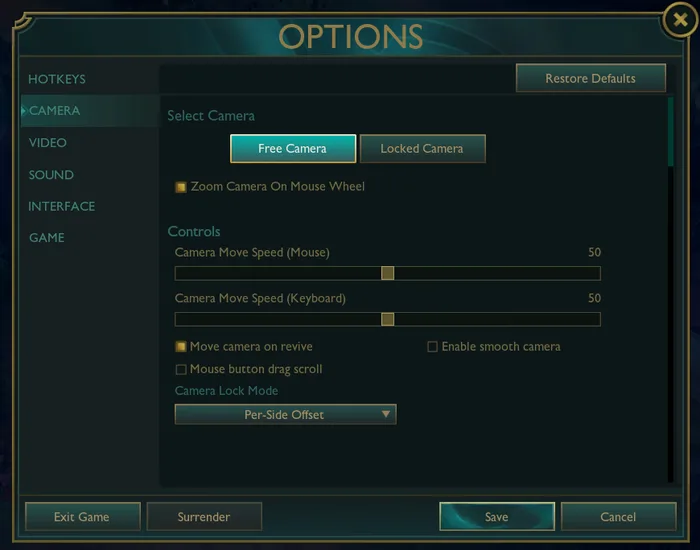
- Use free camera if you can: It opens up more information before fights begin.
- Keep camera move speed moderate: Too slow feels sticky, too fast becomes sloppy. Aim for control, not maximum speed.
- Disable zoom on mouse wheel if you trigger it by accident: Unwanted zoom changes are a quiet way to lose clarity in fights.
- Disable move on revive if it disrupts you: It is a small change, but many players find it cleaner.
- Keep mouse sensitivity consistent: Do not chase someone else’s exact number unless your current setup feels bad.
- Turn off mouse acceleration in your operating system if you want stable muscle memory: League rewards consistency.
- Enable attack move on cursor: This is one of the biggest practical upgrades for kiting, target selection, and ranged team fights.
- Camera lock mode: If you still rely on a locked view, Fixed Offset is the cleanest version, Per-Side Offset gives a little more view toward the lane, and Semi-Locked is the easiest bridge toward full free camera.
The best League of Legends mouse settings are the ones that let you farm, pan, and target without overcorrecting. That is why copying a pro’s DPI is rarely useful by itself. The real goal is a mouse speed that makes repeated lane clicks and quick skirmish reactions feel equally reliable.
If you want more mechanical breakdowns after you lock in your setup, our League guides are the best next stop.
This video is worth watching because attack move is one of the few settings changes that can immediately remove a lot of ranged misclicks.
Once attack move becomes automatic, spacing often improves without any other mechanical change.
Best League of Legends keyboard settings and hotkeys
This is where best League of Legends settings usually make the biggest difference. Hotkeys decide whether your inputs are immediate or delayed, whether your champion behaves the way you intended, and whether you have to think about your controls at all during a fight. The strongest League of Legends keyboard settings and LoL keyboard settings cut out hesitation.
- Quick Cast All: Turn it on. This is still the best default for nearly everyone.
- Quick cast with indicator on a modifier: Bind Shift plus Q, W, E, and R if you want occasional range checks without giving up speed.
- Target champions only: Put it somewhere comfortable, especially if you dive often or fight in waves.
- Attack move on cursor: Turn it on. This is one of the cleanest upgrades for ranged champions and for anyone who kites.
- Auto attack: Off for most players. It gives better control in lane, under turret, and around neutral camps.
- Level abilities with Ctrl + Q/W/E/R: Faster and safer than clicking the HUD.
- Move trinket if needed: If 4 feels awkward, rebind it to something you can hit instantly.
- Show attack range and show spell costs: Both are useful quality-of-life settings, not beginner crutches.
- Bind self-cast on a modifier if you play enchanters or self-targeted champions often: It keeps supportive inputs cleaner.
- Bind attack move to a comfortable key, not just the default: A good bind matters more than copying someone else’s exact layout.
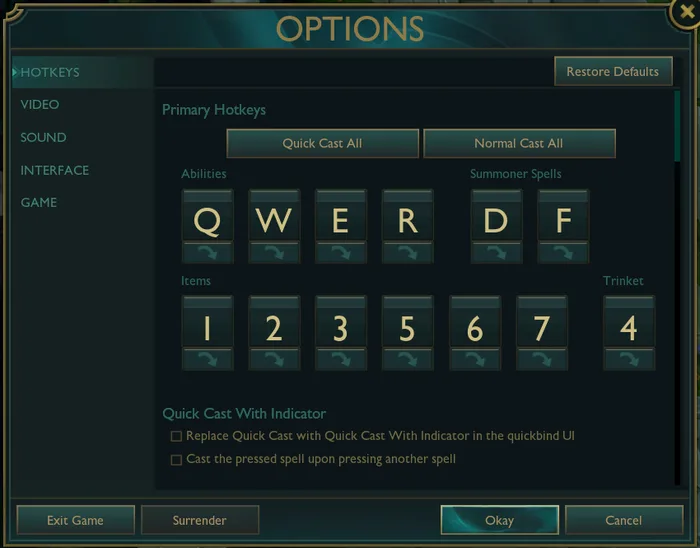
Comfort still matters. A theoretically perfect bind is useless if it twists your hand or slows you down under pressure. The right setup should feel invisible after a few games.
A beginner-friendly setup that still scales
If you are new, do not overcomplicate your first setup. Start with quick cast on all abilities, keep target champions only on an easy key, enlarge the minimap, and reduce your HUD. That already gives you most of the real advantage without forcing you into unfamiliar binds all at once. In other words, the best LoL settings for a beginner are usually the same settings that still work at higher levels, just with less customization on day one.
This guide is worth using because it focuses on the settings and hotkeys most players should change first, rather than burying the basics under niche tweaks.
Use it as a checklist, then test each change in Practice Tool before taking the full setup into ranked.
Best interface settings and sound settings
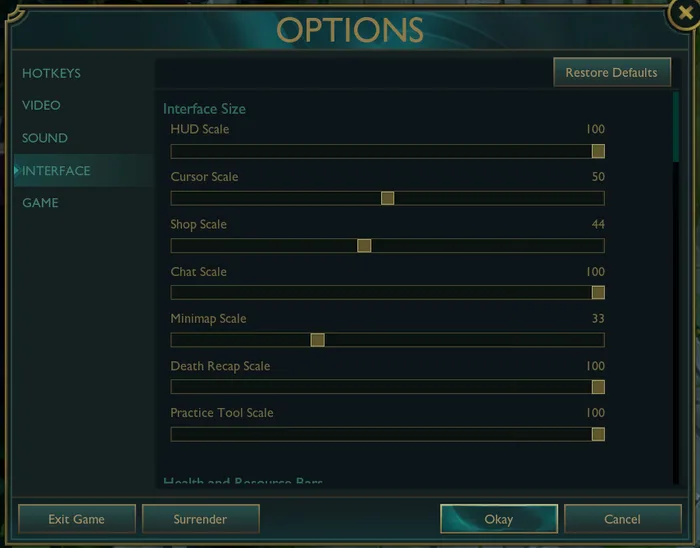
The default interface in League is usually too big where you do not need it and too small where you do. The best League of Legends settings fix that by shrinking the HUD and enlarging the minimap so your screen shows more useful information.
- HUD scale: 20 to 40 is the sweet spot for most players.
- Minimap scale: 60 to 80 works well. Bigger than default almost always helps.
- Chat scale: Lower it unless you really need large text.
- Champion name over health bars: Usually more useful than summoner names.
- Show spell costs: Helps with all-ins and mana planning.
- Show timestamps: Great for summoner spell tracking and objective calls.
- Experience combat text: Helpful when learning XP range and lane spacing.
- Show loss of control UI: Worth keeping on if you want clearer information in chain-CC situations.
- Champion highlight on camera center: Useful if you ever lose your champion in a busy fight after pressing Space.
- Mute enemy emotes if they tilt you: There is no reason to donate attention for free.
Sound settings are more personal, but the best League of Legends settings here are still pretty consistent. Music can go low or off. Keep sound effects and pings clear. Announcer volume should stay audible. Ambience can be lowered if you want a cleaner audio mix. The point is not dramatic sound, it is hearing what matters without fatigue.
Small settings that are easy to miss
This is where a lot of other guides still feel thin. They cover the obvious sliders, then stop. A few smaller settings are worth checking because they improve clarity without changing the whole game around your hands.
- Show Neutral Camps: Useful for cleaner jungle awareness on the minimap.
- Enable All Camp Timers: Great for players who want more information without opening the scoreboard repeatedly.
- Enable Line Missile Display: Better for players who prefer seeing skillshot lines rather than only radius-style indicators.
- Allow Minimap Movement: Keep it on if you use the minimap well. Turn it off if you frequently misclick the map in fights or while using left-click attack move.
- Treat Target Champions Only as a toggle: Easier for many players than holding the key during dives or wave-heavy skirmishes.
- Clamp cast target location within max range: Useful if you want out-of-range casts to snap to max range instead of forcing movement first.
- Learn Spell on Cast: Helpful for newer players who want a cleaner first-level or level-up input flow.
- Disable HUD spell click: A niche but useful advanced option if you ever misclick abilities on the HUD during hectic moments.
- Display champion sound notification: A strong quality-of-life setting for global and high-impact ultimates that are easy to miss in noisy fights.
None of these settings will carry a game by themselves, but together they make your setup feel more intentional and more complete than a generic “turn shadows off” guide.
Client and launcher settings that affect FPS more than people think
Many guides stop at the in-game menu and miss the client completely. That is a mistake. Some of the most useful performance improvements happen before you even load onto Summoner’s Rift, which is why this section matters if you care about low settings, older hardware, or random FPS drops after patches.
- Enable low spec mode in the client if your PC stutters or feels overloaded.
- Close client during game if you want to free up resources for the match itself.
- Reduce background apps before you queue, especially browsers, overlays, and streaming tools you are not actively using.
- Do not judge FPS in fountain, test it in fights, especially around dragon, Baron, and crowded mid-game skirmishes.
- Check for client-side changes after major updates if performance suddenly drops without any hardware change on your end.
- Keep the client near its default size if it starts acting strangely. Some client issues come from scaling and layout more than graphics.
If your game still dips after that, work through our LoL troubleshooting guides and check major client or patch-side changes in our patch and client updates. Riot’s broader platform announcements on Riot Games pages can also explain why performance or menus suddenly changed after a rollout.
Best League of Legends Mac settings
League of Legends Mac settings should follow the same competitive logic as PC, but with a little more respect for thermal limits and background load. The best LoL Mac settings are usually Full Screen, native resolution, shadows off, environment low, effects low or medium, quick cast on, and as few extra apps running as possible.
If your Mac gets hot or starts dropping frames later in a session, do not immediately lower everything. First remove browser tabs, recording tools, and anything else competing for resources. Then lower effects, then environment quality, and only after that touch character quality. That keeps the screen readable while you claw back performance.
League of Legends pro settings and what top players actually agree on
Most people searching for League of Legends pro settings are really asking a different question: what do top players consistently agree on, and what is just preference? That is the useful way to think about pro player settings, whether you are checking Faker settings, Viper settings, Chovy settings, Gumayusi settings, Ruler settings, or anyone else at the top level.
| Usually agreed on | Mostly personal preference |
|---|---|
| Quick cast on abilities | Exact mouse sensitivity |
| Attack move on cursor | Specific attack move bind |
| Smaller HUD | Exact minimap size once it is above default |
| Larger minimap | Colorblind mode on or off |
| Stable FPS over pretty visuals | Character quality if performance is already stable |
| Shadows off or very low | Borderless versus Full Screen for streamers |
That is why copying one screenshot from a pro is rarely enough. The better approach is to copy the principles that show up again and again, then tune the rest around your hardware and your hand comfort. If you like checking how top players actually play and what trends stick in real games, our esports coverage and the live League of Legends Twitch category are both useful for seeing those habits in action.
This video is helpful because it shows a full in-game setup from a high-level player, which makes it easier to separate universal ideas from personal tweaks.
Use it to compare categories, not to copy every number blindly.
Common mistakes that ruin good settings
Even the best League of Legends settings can feel bad if you change too much at once or keep second-guessing yourself after every loss. A few common mistakes cause that problem more than anything else.
- Changing graphics, hotkeys, camera speed, and mouse speed in one session, then not knowing which change helped or hurt.
- Copying a pro setup built for a completely different monitor and hardware.
- Using low settings everywhere even when your PC can handle better clarity on champions and effects.
- Keeping a locked camera because it feels safe, even though it hides too much information.
- Turning on fancy control options because they are new, not because they are actually better for you.
- Testing a new setup only in fountain, then assuming it works fine when real fights start.
The fix is simple. Change one category at a time, play a few games, then decide. That sounds slower, but it is the quickest way to end up with a setup you trust.
For patch reactions, client changes, and community discussion around what people are trying now, our League news and active threads on r/leagueoflegends are useful follow-ups once you have your baseline locked in.
Frequently asked questions about League of Legends settings
What are the best League of Legends settings for ranked?
Use the competitive preset. Native resolution, Full Screen, shadows off, environment low, effects medium, quick cast on, attack move on cursor on, auto attack off, HUD around 25 to 30, and a larger minimap is the safest ranked setup for most players.
Are low settings always the best choice?
No. Low settings are best when your FPS is unstable or fights look too busy. If your PC runs the game easily, medium or high character quality and medium effects often give better visual clarity without hurting performance.
Should I copy Faker settings or other pro player settings exactly?
No. Copy the shared logic behind pro setups, not every single value. The best League of Legends settings are the ones that fit your hardware, your monitor, and your own mouse control.
What are the best League of Legends Mac settings?
For League of Legends Mac settings and LoL Mac settings, keep the focus on performance first. Use Full Screen, native resolution, shadows off, environment low, effects low or medium, quick cast on, and keep background apps to a minimum.
Is WASD movement better than classic controls?
Not for everyone. It can help players who prefer keyboard movement or come from other genres, but many experienced League players will still perform better with classic click-to-move and free camera.
How should I test new settings?
Use Practice Tool first, then normals, then ranked. Test one category at a time, especially hotkeys and camera settings. If you want to compare what real players are trying, community discussions can help, but always test ideas yourself before keeping them.
What matters more, video settings or hotkeys?
Hotkeys usually create the bigger gameplay jump, but video settings create the cleaner environment that makes those inputs easier to use. You need both if you want the full benefit.
What should I change first if I only have five minutes?
Turn on quick cast, disable VSync, turn shadows off, reduce your HUD, enlarge the minimap, and enable attack move on cursor. That small group of changes gives the biggest immediate upgrade for most players.
Lock in the baseline, then play the game
The best League of Legends settings should disappear once the match begins. You should not be thinking about your shadows, your HUD, or whether your trinket key feels awkward while a fight is breaking out. Build a clean baseline, test changes in the right order, and keep the settings that make your play simpler, faster, and more readable.
When you want to refine things later, keep using our League guides, LoL troubleshooting guides, League news, patch and client updates, and esports coverage as your next checkpoints instead of rebuilding your setup from scratch every patch.