Vanguard error codes are the family of League of Legends security, startup, and connection errors that appear when Riot Vanguard cannot start correctly, verify your system, or maintain a healthy session with the Riot Client. In plain English, a League of Legends Vanguard error usually points to one of four problems: Vanguard is not running, its connection to the Riot Client has failed, your Windows configuration is unsupported, or another program or driver is interfering with the anti-cheat.
If you are staring at a VAN error, start with the least invasive fix: fully close League of Legends and the Riot Client, restart your PC, and launch the Riot Client again. Do this before reinstalling anything or changing BIOS settings. A full reboot fixes many temporary Vanguard error codes because the Vanguard service and driver are loaded during Windows startup.
One of the newest errors is VAN 216. Riot says this code can appear when Vanguard has trouble starting, staying connected, or confirming that your system is ready. Restart the PC first, then check that Windows is using the correct date, time, and time zone. An incorrect or unsynchronized system clock can prevent Vanguard from validating the session correctly.
Vanguard error codes by type and fastest fix
A League of Legends VAN error is easier to fix when you stop treating every code like a separate mystery. Many codes share the same underlying causes, so the table below gives you the best first move before you reinstall drivers, change firmware settings, or wipe the entire game.
| Code | What it usually means | Best first move | Next step if it stays |
|---|---|---|---|
| VAN -1 | Vanguard uninstall or installation failure | Reinstall Riot Vanguard | Submit a Riot Support ticket if removal still fails |
| VAN -72 | Vanguard startup, connection, or system-readiness failure | Restart your PC | Perform a clean boot, then reinstall Vanguard |
| VAN -79 | Vanguard startup, connection, or system-readiness failure | Restart your PC | Perform a clean boot, then reinstall Vanguard |
| VAN -81 | Vanguard cannot start or maintain its connection | Restart your PC | Check VGC, then reinstall Vanguard and League |
| VAN -83 | Vanguard startup, connection, or system-readiness failure | Restart your PC | Perform a clean boot, then reinstall Vanguard |
| VAN -92 | Vanguard startup, connection, or system-readiness failure | Restart your PC | Perform a clean boot, then reinstall Vanguard |
| VAN -100 | Riot Client or Vanguard connection failure | Restart the Riot Client | Restart the PC and reinstall Vanguard if needed |
| VAN -101 | Unsupported system configuration | Check LoL system requirements and Windows version | Update Windows, drivers, and unsupported system settings |
| VAN -102 | Vanguard startup or initialization failure | Restart your PC | Reinstall Vanguard and League |
| VAN -104 | Vanguard startup or initialization failure | Restart your PC | Reinstall Vanguard and League |
| VAN 0 | Vanguard could not verify that the PC was ready | Restart League and the Riot Client | Restart the PC, then reinstall Vanguard |
| VAN 1 | Generic Vanguard connection or initialization error | Restart League and the Riot Client | Restart the PC and retry |
| VAN 6 | Vanguard could not verify that the PC was ready | Restart League and the Riot Client | Restart the PC, then reinstall Vanguard |
| VAN 25 | Unexpected Vanguard error | Restart the Riot Client and PC | Reinstall Vanguard if it returns |
| VAN 57 | Vanguard is not running | Restart your PC | Check the VGC service and reinstall Vanguard |
| VAN 59 | Vanguard could not start or communicate with Riot Client | Restart the Riot Client | Remove and reinstall Vanguard |
| VAN 68 | Vanguard lost a required connection or session | Restart your PC and check the network | Clean boot Windows and check network software |
| VAN 84 | Vanguard connection or system-readiness failure | Restart League and the Riot Client | Check Riot status, then restart the PC |
| VAN 128 | Vanguard connection or system conflict requiring extra checks | Restart your PC | Follow Riot’s dedicated VAN 128 troubleshooting |
| VAN 133 | Vanguard could not verify that the PC was ready | Restart your PC | Check VGC, clean boot Windows, and reinstall Vanguard |
| VAN 135 | Vanguard initialization or system-verification failure | Restart your PC | Check VGC and reinstall Vanguard |
| VAN 138 | League or Vanguard is running in a virtual machine | Use a normal Windows installation | Do not run Vanguard inside a VM |
| VAN 140 | Startup or connection issue involving the game, Riot Client, or Vanguard | Restart your PC | Reinstall Vanguard and the game |
| VAN 148 | Unexpected Vanguard startup or system check-in error | Restart your PC | Remove and reinstall Vanguard |
| VAN 152 | Hardware ID ban | Do not keep reinstalling | Contact Riot Support |
| VAN 185 | Session or connection issue between the game, client, and Vanguard | Restart the client and log out on other devices | Check requirements, network, and background software |
| VAN 193 | Vanguard could not start or communicate with Riot Client | Restart your PC | Remove and reinstall Vanguard |
| VAN 216 | Vanguard startup, connection, or system validation problem | Restart your PC and synchronize Windows time | Reinstall Vanguard and send logs to Riot Support |
| VAN 1067 | Unexpected Vanguard startup or system check-in failure | Restart your PC and disconnect extra devices | Clean boot Windows and reinstall Vanguard |
| VAN 2266 | Vanguard could not verify or initialize the system correctly | Restart your PC | Check VGC, clean boot, and reinstall Vanguard |
| VAN9001 | TPM 2.0 is disabled or unavailable | Enable TPM 2.0 | Check BIOS support and Windows 11 requirements |
| VAN9002 | Windows Exploit Protection is disabled | Restore Exploit Protection defaults | Recheck Windows Security settings |
| VAN9005 | UEFI, TPM 2.0, or VBS requirement problem | Enable UEFI and TPM 2.0 | Review firmware and virtualization security settings |
| VAN9006 | Unsupported Windows version | Update Windows | Upgrade to a supported Windows version |
| VAN9051 | Vanguard launch error | Restart your PC | Reinstall Vanguard if it returns |
| VAN9101 | Vanguard considers the machine untrusted | Update drivers and remove unnecessary devices | Remove conflicting third-party software |
| VAN: STATUS_VMD_9001 | Problem involving Intel Volume Management Device or Intel RST | Update or reinstall the Intel RST driver | Use the correct storage driver from the PC or motherboard manufacturer |
Riot has started publishing individual support pages for more Vanguard codes, including VAN -72, VAN -79, VAN -83, VAN -92, VAN 59, VAN 133, VAN 135, VAN 140, VAN 148, VAN 193, VAN 216, and VAN 2266. Many of these newer codes describe similar startup or validation failures, which is why their recommended troubleshooting paths overlap.
The reset order that fixes most League of Legends VAN errors
Before chasing one specific code, run through a broader League troubleshooting checklist and compare your message with Riot’s official LoL Vanguard error list. Riot may also publish a separate support page for newer codes before adding them to the main list.
- Close every Riot process. Exit League of Legends and the Riot Client. Open Task Manager and end any remaining League, Riot Client, RiotClientServices, RiotClientCrashHandler, Vanguard, or VGC processes.
- Restart the PC. Do a real Windows restart rather than using sleep or hibernation. The Vanguard driver and service need a clean Windows startup.
- Open the Riot Client once. Let it load completely before launching League. Do not start several Riot games or clients at the same time.
- Check the VGC service. Press Windows + R, enter services.msc, find vgc, set its startup type to Automatic, and try to start it.
- Synchronize Windows time. Open Settings, select Time & language, then Date & time. Enable automatic time and time-zone detection where available, then select Sync now. This is especially important for VAN 216.
- Check Riot’s service status. If the error appeared immediately after a patch or many players are disconnecting at once, visit our LoL server status page before changing your installation.
- Perform a clean boot. Disable non-Microsoft startup services and unnecessary background applications to identify software that interferes with Vanguard.
- Reinstall Riot Vanguard. Remove Vanguard first, restart the PC, and launch League to install it again.
- Reinstall League only if necessary. Use our complete LoL uninstall guide, then download League again from Riot.
Do not jump directly into BIOS changes for a generic error such as VAN 59, VAN 68, VAN 193, VAN 216, or VAN 2266. Firmware changes should normally be reserved for codes that explicitly mention TPM, Secure Boot, UEFI, virtualization-based security, or another system requirement.
How to check and restart the VGC service
The vgc Windows service is a core part of Riot Vanguard. If it is disabled, stuck, or unable to start, League may show VAN 57 or one of several generic initialization codes.
- Press Windows + R.
- Enter services.msc and press Enter.
- Find vgc in the services list.
- Right-click it and select Properties.
- Set Startup type to Automatic.
- Select Start, then Apply.
- Restart the PC and launch League again.
If the service stops again immediately or Windows returns an error when you try to start it, reinstall Vanguard rather than repeatedly forcing the service to run. A driver, damaged Vanguard installation, or conflicting security product may be blocking it.
How to reinstall Riot Vanguard correctly
You normally do not need to uninstall League to reinstall Vanguard. Remove the anti-cheat component first and let the Riot Client install a clean copy.
- Close League and the Riot Client completely.
- Open Windows Settings and go to Apps or Installed apps.
- Find Riot Vanguard and select Uninstall.
- Restart the PC after the removal finishes.
- Open the Riot Client and launch League of Legends.
- Allow Vanguard to reinstall.
- Restart the PC again if Riot asks you to do so.
If Vanguard does not appear in the installed apps list, the installation may already be damaged. In that case, follow Riot’s manual Vanguard removal instructions or proceed with a clean League reinstall.
How to fix the most common Vanguard error codes
VAN 216: restart Vanguard and synchronize Windows time
VAN 216 is one of the newer Vanguard error codes. It usually means Vanguard had trouble starting, maintaining its connection, or confirming that your game session and system were ready.
The Windows clock matters because authentication and security systems use timestamps when validating connections. A significantly incorrect clock, time zone, or synchronization state can make an otherwise healthy PC look out of sync.
- Restart the PC to give Vanguard a clean startup.
- Open Settings > Time & language > Date & time.
- Enable Set time automatically.
- Enable automatic time-zone selection or choose the correct zone manually.
- Select Sync now.
- Close and reopen the Riot Client.
- If VAN 216 returns, reinstall Vanguard and submit your Riot logs with a support ticket.
Do not repeatedly queue while VAN 216 is disconnecting you. Test the fix in Practice Tool or a custom game first so another crash does not result in a queue restriction or LeaverBuster penalty.
VAN 57 and VAN -81: Vanguard is not healthy or not starting
VAN 57 and VAN -81 commonly appear when Vanguard fails to start correctly with Windows. The anti-cheat service may be disabled, a background process may be stuck, or the Riot Client may be trying to communicate with Vanguard before it is ready.
- End every Riot, League, and Vanguard process in Task Manager.
- Restart the PC, not just the Riot Client.
- Open Services and confirm that vgc is set to Automatic.
- Start the service manually if it is stopped.
- If VGC refuses to stay running, reinstall Riot Vanguard.
This is also the best starting point for VAN -1, although VAN -1 is more specifically associated with a failed Vanguard installation or removal.
This walkthrough is useful if you are dealing with VAN -81 and want to see the service-check flow before reinstalling anything.
The key takeaway is simple: fix the Vanguard service state first and reinstall it only if the service still cannot start.
This video covers VAN 57 when League behaves as though Vanguard is missing or unavailable.
Use it as a visual companion to the VGC service and reinstall instructions above.
VAN -72, VAN -79, VAN -83, and VAN -92
Riot describes these newer negative-number codes in similar terms: Vanguard is having trouble starting, staying connected, or confirming that everything is ready while the game is launching or running.
- Restart the PC.
- Check that VGC is set to Automatic.
- Install pending Windows and driver updates.
- Perform a clean boot to remove background conflicts.
- Reinstall Riot Vanguard if the code returns.
Because these codes cover several possible failure points, avoid assuming that your internet connection is the only cause. A background service, security suite, hardware utility, overlay, or broken Vanguard installation may produce the same result.
VAN 0 and VAN 185: session and connection problems
VAN 0 and VAN 185 can appear when the session between League, Riot Client, and Vanguard is no longer healthy. VAN 185 has also historically been associated with leaving the Riot Client open for a long time or being logged in on multiple devices.
- Sign out of the Riot Client on other computers.
- Close League and the Riot Client completely.
- Restart the PC if the client has been open for several days.
- Log in again and launch only League.
- Check your network and background software if the error returns during matches.
This video provides a visual reset and reinstall sequence for VAN 185.
VAN 59, VAN 140, VAN 148, and VAN 193
These codes generally indicate that Vanguard encountered an unexpected error while starting, communicating with Riot Client, or checking in with the system.
- Restart the Riot Client and PC.
- Check the VGC service.
- Temporarily close unnecessary overlays, hardware tools, and security utilities.
- Reinstall Riot Vanguard.
- Reinstall League only if a clean Vanguard installation does not help.
VAN 140 can also appear on unsupported or outdated Windows installations. Check Riot’s current minimum requirements rather than relying on an old guide written for Windows 7 or Windows 8.
VAN 68 and VAN 84: lost connections and interrupted sessions
VAN 68 appears when Vanguard loses a connection or session that it needs while the game is launching or running. VAN 84 is also commonly treated as a connection or initialization failure.
- Restart the PC, League, and Riot Client.
- Power cycle the router if the connection has been unstable.
- Temporarily disable VPN and proxy software.
- Perform a clean boot to identify conflicting network or background software.
- Disable or update Killer Network services and similar traffic-management utilities if installed.
- Try a different network to distinguish a PC problem from a router or ISP problem.
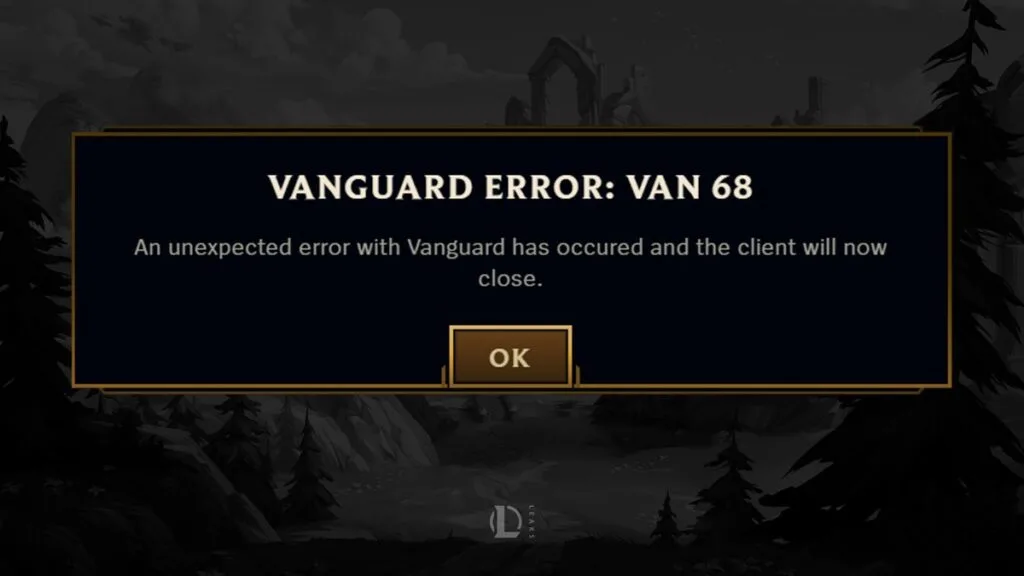
If VAN 68 or VAN 84 appears while many other players are reporting disconnects, check server status before reinstalling the game.
VAN -101: unsupported system configuration
VAN -101 should not be treated as an ordinary Riot Client connection error. Riot’s current guidance describes it as an unsupported system configuration, meaning that Vanguard has detected a PC or Windows setup that does not meet League of Legends’ requirements.
- Check Riot’s current League of Legends minimum system requirements.
- Install all supported Windows updates.
- Update motherboard, chipset, storage, and graphics drivers.
- Remove compatibility modes applied to League or Riot Client executables.
- Avoid modified, stripped-down, test-signed, or unsupported Windows installations.
- Contact Riot Support if your PC meets the published requirements but the code remains.
Reinstalling the Riot Client may not solve VAN -101 if the underlying Windows configuration is still unsupported.
VAN 1067 and VAN 9101: local hardware or software conflicts
VAN 1067 and VAN 9101 often indicate that the local PC environment is preventing Vanguard from completing its checks. VAN 9101 specifically describes an untrusted machine state.
- Update chipset, motherboard, storage, and GPU drivers.
- Disconnect unnecessary controllers, USB storage devices, hubs, capture cards, and adapters.
- Close RGB tools, overclocking tools, hardware monitoring utilities, overlays, and low-level driver software.
- Remove software that hooks into games or resembles cheat, macro, scripting, debugging, or memory-editing tools.
- Perform a clean boot and test League with only essential Windows services running.
- Reinstall Vanguard after removing the suspected conflict.
Do not apply random registry edits or disable important Windows security features. The goal is to restore a normal, supported system state rather than making Vanguard trust a less secure configuration.
VAN9001, VAN9002, VAN9005, and VAN9006
These Vanguard error codes are tied to Windows security and compatibility requirements rather than a temporary Riot Client connection.
- VAN9001: TPM 2.0 is disabled, unavailable, or not correctly detected.
- VAN9002: Windows Exploit Protection or Control Flow Guard requirements are not enabled correctly.
- VAN9005: Vanguard requires TPM 2.0 and UEFI-compliant firmware for the system’s virtualization-based security configuration.
- VAN9006: The installed Windows version is no longer supported.
Before entering the BIOS, open System Information in Windows and check the values beside BIOS Mode and Secure Boot State. You can check TPM by pressing Windows + R, entering tpm.msc, and reviewing the TPM specification version.
Firmware menus differ between motherboard manufacturers. Do not convert a system disk, disable Compatibility Support Module, update firmware, or change storage settings unless you understand the effect and have a current backup.
VAN: STATUS_VMD_9001 and Intel RST drivers
VAN: STATUS_VMD_9001 is more specific than the normal numbered VAN errors. Riot says it is connected to the Intel Volume Management Device controller and is normally resolved by reinstalling or updating the Intel Rapid Storage Technology driver.
- Identify the exact PC, laptop, or motherboard model.
- Download the recommended Intel RST or VMD driver from the manufacturer’s official support page.
- Install the driver and restart the PC.
- Run Windows Update and check for relevant optional driver updates.
- Do not disable VMD or change the storage controller mode in BIOS as a casual troubleshooting step. An incorrect storage-mode change can prevent Windows from booting.
VAN 138 and VAN 152 need a different response
VAN 138 means League or Vanguard is being run inside a virtual machine or unsupported virtualized environment. Install and run the game on a normal, supported Windows installation instead.
VAN 152 is a hardware ID ban. It is not a routine installation, network, or service error. Reinstalling Vanguard, replacing files, changing hardware identifiers, or following ban-evasion guides is not an appropriate fix. Contact Riot Support if you believe the restriction was applied incorrectly or need information about the account action.
How to perform a clean boot for Vanguard
A clean boot starts Windows with Microsoft services and a reduced set of startup programs. It is useful for codes such as VAN -72, VAN -79, VAN -81, VAN -83, VAN -92, VAN 68, VAN 1067, and VAN 2266.
- Press Windows + R, enter msconfig, and press Enter.
- Open the Services tab.
- Select Hide all Microsoft services.
- Make sure the vgc service remains enabled.
- Disable the remaining non-essential third-party services.
- Open Task Manager’s Startup apps section and disable unnecessary startup programs.
- Restart Windows and test League.
If the error disappears, re-enable services and startup programs in small groups until you identify the conflict. Restore your normal startup configuration when troubleshooting is complete.
When the problem is probably not on your PC
Sometimes the smartest Vanguard fix is knowing when not to touch your installation. If a VAN error appears immediately after a patch, during a login incident, or alongside a sudden wave of disconnect reports, check our LoL server status page first.
You can also compare reports in r/leagueoflegends and r/riotgames. Community reports are not a replacement for official support, but a large number of identical reports appearing at the same time can indicate a broader Riot-side issue.
A likely service-side incident becomes less likely when the code affects only one PC, continues for several days, prevents the VGC service from starting, or disappears when you use a clean Windows environment.
When to contact Riot Support
Contact Riot Support when the same code remains after a restart, service check, clean boot, Windows update, and clean Vanguard reinstall. Support is also the correct path for VAN 152, persistent VAN 9101 errors, unsupported-configuration disputes, and errors that repeatedly disconnect you from matches.
Include the following information with your ticket:
- The exact VAN code, including any minus sign or text such as STATUS_VMD_9001.
- Whether it appears during login, champ select, loading, or an active match.
- Your Windows version and build.
- Whether the VGC service starts successfully.
- The troubleshooting steps you have already completed.
- Recent Windows, BIOS, driver, antivirus, or hardware changes.
- Riot Client, League, Vanguard, and system logs requested by Player Support.
Frequently asked questions about Vanguard error codes
What is a VAN error in League of Legends?
A VAN error is a Riot Vanguard error code. It appears when the anti-cheat cannot start, verify the PC, communicate with the Riot Client, or maintain the session required to run League of Legends.
How do I fix VAN 216 in League of Legends?
Restart the PC first. Then open Windows date and time settings, enable automatic time, select the correct time zone, and synchronize the clock. Restart the Riot Client and reinstall Vanguard if VAN 216 returns.
Which Vanguard error codes usually fix with a restart?
VAN 0, VAN 1, VAN 6, VAN 25, VAN 57, VAN 59, VAN 68, VAN 84, VAN -72, VAN -79, VAN -81, VAN -83, VAN -92, VAN -100, VAN -102, VAN -104, VAN 133, VAN 135, VAN 140, VAN 148, VAN 185, VAN 193, VAN 216, VAN 1067, VAN 2266, and VAN9051 are all reasonable candidates for a full PC restart as the first step.
Why does Vanguard need a full PC restart?
Vanguard includes a driver and Windows service that start with the operating system. Restarting only League or the Riot Client may not reset the part of Vanguard that failed.
Is VAN -101 just a connection error?
No. Riot currently describes VAN -101 as an unsupported system configuration. Check League’s system requirements, Windows version, drivers, and whether the operating system has been modified or placed in an unsupported mode.
What should I do if the same error returns after reinstalling Vanguard?
Stop repeating the reinstall. Check whether the code points to Windows compatibility, TPM, UEFI, Exploit Protection, drivers, storage configuration, a virtual machine, security software, or another background conflict. Send Riot logs to Player Support if the cause remains unclear.
Can antivirus software cause a Vanguard error?
Yes. Security software can block Vanguard services, drivers, files, or network communication. Update the security software first and check its quarantine and event history. Avoid permanently disabling antivirus protection simply to run League.
Should I enable TPM or Secure Boot for every VAN code?
No. Change firmware security settings only when the code or Vanguard notification specifically points to TPM, Secure Boot, UEFI, VBS, or system compliance. Generic startup and connection codes should be handled with a restart, VGC check, clean boot, and Vanguard reinstall first.
Is VAN 152 something I can fix myself?
No. VAN 152 is a hardware ban code rather than a normal technical fault. Contact Riot Support if you need clarification or believe the restriction was applied incorrectly.
Should I uninstall Vanguard or League first?
Start with Vanguard because it is the component directly connected to VAN errors. Reinstall League only when the Vanguard reinstall fails, the Riot installation is damaged, or Riot Support recommends a complete reinstall.
Can server problems trigger Vanguard error codes?
Yes. Connection and session codes can sometimes appear during Riot login incidents, patch problems, or wider service outages. Check server status before performing a complete reinstall, especially when the error began suddenly and many players are affected.
Use the fastest fix, not the loudest one
Most Vanguard error codes do not require a dramatic solution. Fully close League and Riot Client, restart the PC, check VGC, synchronize Windows time, and confirm that Riot’s services are online. Move to a clean boot and Vanguard reinstall only if the same code returns.
Use our League troubleshooting checklist for broader client problems and check LoL server status before assuming your installation is broken. If a complete reset is necessary, follow our how to uninstall LoL completely walkthrough and download League again. This escalation order is safer and more effective than applying random registry, driver, or BIOS changes to every VAN error.