How to uninstall League of Legends is simple when you close the Riot Client first, remove the game through your operating system, then delete leftover Riot and League folders if you want a clean reset.
The part that trips people up is that League is not just one folder. A full removal can involve League of Legends, the Riot Client, cached files, saved replays, old setup files, and, on Windows, Riot Vanguard. A normal uninstall removes the main game. A clean uninstall removes the pieces that can cause patch loops, client errors, or broken reinstall attempts later.
This guide walks through the safest order, what to delete, what to keep, and what to do when League of Legends is not uninstalling cleanly.
Quick answer: How to uninstall League of Legends safely
The safest way to uninstall League of Legends is to exit League and the Riot Client, uninstall League from Windows Installed apps or macOS Applications, restart, then remove leftovers only if you want a clean uninstall. Riot’s uninstall and reinstall guidance also stresses that the Riot Client must be closed before Riot games can be removed.
- Close League of Legends.
- Exit the Riot Client from the system tray or menu bar.
- Uninstall League from Windows Installed apps, Control Panel, or the Mac Applications folder.
- Restart your computer if the uninstall fails, stalls, or says Riot is still running.
- Delete leftover Riot and League folders only after the normal uninstall finishes.
- Remove Riot Client and Riot Vanguard separately if you no longer need them.
Before you delete anything manually, back up replays or settings you still care about. If you are uninstalling because you need a break, checking your time spent on LoL can also make the decision feel more deliberate instead of impulsive.
Choose the right uninstall method first
Not everyone searching for how to uninstall League of Legends needs the deepest cleanup. A player who wants to reinstall tomorrow should not delete the same things as someone who wants every Riot component off a work laptop. Use this table before you start removing files.
| Goal | What to remove | Best method | Important warning |
|---|---|---|---|
| Free up the main game storage | League of Legends | Windows Installed apps or Mac Applications | Cache and settings may remain |
| Fix patch loops or client errors | League, local cache, ProgramData, old setup files | Normal uninstall, then manual cleanup | Back up replays before deleting Documents |
| Completely uninstall League of Legends | League folders, Riot cache folders, replays, installers | Clean uninstall steps below | Do not delete shared Riot folders if you still play other Riot games |
| Remove all Riot software | League, Riot Client, Riot Vanguard, Riot folders | Uninstall each app, then delete leftovers | Other Riot titles will need repair or reinstall |
| Prepare for a fresh reinstall | Broken install files and old config folders | Clean uninstall, restart, download fresh installer | Do not reuse old setup files from Downloads |
How to uninstall League of Legends on Windows 10 and 11
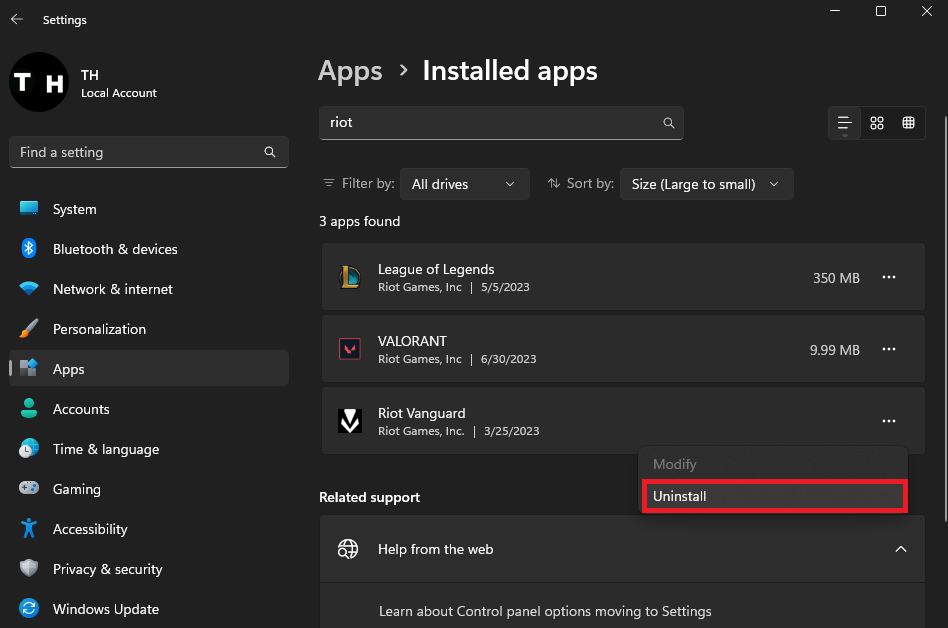
How to uninstall League of Legends on Windows starts in Installed apps, but do not open that menu until the Riot Client is fully closed. The uninstall can fail if RiotClientServices.exe, LeagueClient.exe, or a Riot background process is still active.
- Close League of Legends if it is open.
- Look at the system tray in the bottom-right corner of Windows.
- Click the hidden icons arrow, right-click the Riot Client icon, then choose Exit.
- If Riot Client does not close, press Ctrl + Shift + Esc, open Task Manager, select Riot Client or RiotClientServices.exe, then choose End task.
- Press the Windows key and type Installed apps. On older Windows menus, Add or remove programs works too.
- Search for League of Legends.
- Click the three-dot menu or uninstall button, then confirm the uninstall.
- Wait for the process to finish before deleting any folders manually.
- Restart your PC if Windows says League or Riot is still running.
That is the standard way to uninstall League of Legends. For many players, it is enough. If your goal is to remove League of Legends from PC completely, continue with the cleanup steps below.
The Windows uninstall path is easier to follow when you can see the sequence: close Riot, remove League, then clean leftovers. This video shows the same core flow without skipping the Riot Client step that often causes uninstall errors.
If the game disappears from the app list but files remain on the drive, that does not always mean the uninstall failed. League can leave cache, logs, replays, shortcuts, or Riot Client data behind, especially if the Riot Client is still installed for another Riot game.
How to completely uninstall League of Legends and delete leftover files
How to uninstall League of Legends completely means removing local files after the app uninstall. This is most useful when you are fixing bad patches, stuck installs, damaged client settings, or League of Legends uninstall issues that keep coming back after a reinstall.
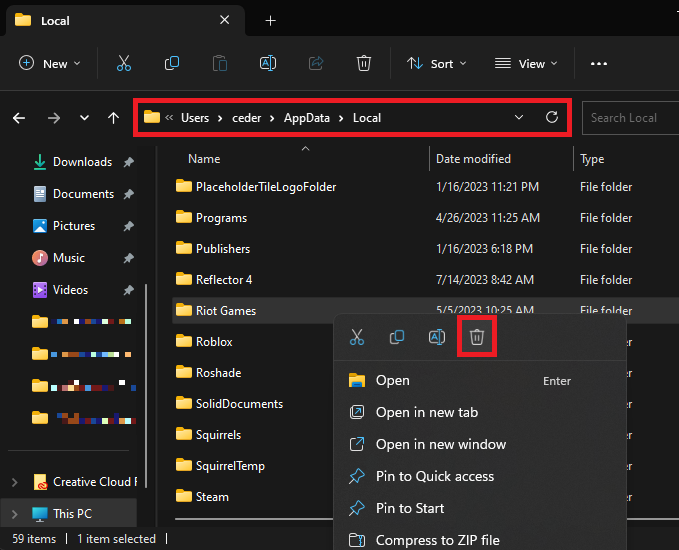
Only do this after League and the Riot Client are closed. If you still play VALORANT, Teamfight Tactics, Legends of Runeterra, or another Riot title on the same computer, be selective. Shared Riot folders can affect more than League.
- Open File Explorer and check
C:Riot Games. Delete the League of Legends folder if it remains. - Delete old League installer files from your Downloads folder or desktop if you used them before.
- Press Windows key + R, type
%localappdata%, then press Enter. Delete the Riot Games folder if you are removing Riot data completely. - Press Windows key + R, type
%programdata%, then press Enter. Delete the Riot Games folder if it remains. - Open your Documents folder and look for League of Legends. This folder can contain saved replays, so copy anything you want before deleting it.
- Search your other drives for League of Legends or LeagueClient.exe if you installed the game outside the default C drive.
- Empty the Recycle Bin.
- Restart your PC.
This is the practical version of a clean uninstall. You do not need to delete random registry keys for a normal cleanup. Registry editing can break unrelated programs if the wrong entry is removed, so save it for rare cases where Windows still shows a broken League entry after the files are already gone.
How to remove Riot Client after uninstalling League
How to uninstall League of Legends and how to remove Riot Client are related, but they are not the same task. The Riot Client is shared across several games from Riot Games, so Windows may leave it installed even after League is gone.
Remove Riot Client only when you no longer need it for any Riot game. If Riot Client is still needed, leave it installed and delete only the League-specific folders.
- Uninstall League of Legends first.
- Uninstall any other Riot games you do not want to keep.
- Exit Riot Client from the system tray.
- Open Installed apps and search for Riot Client.
- Select Uninstall if the option appears.
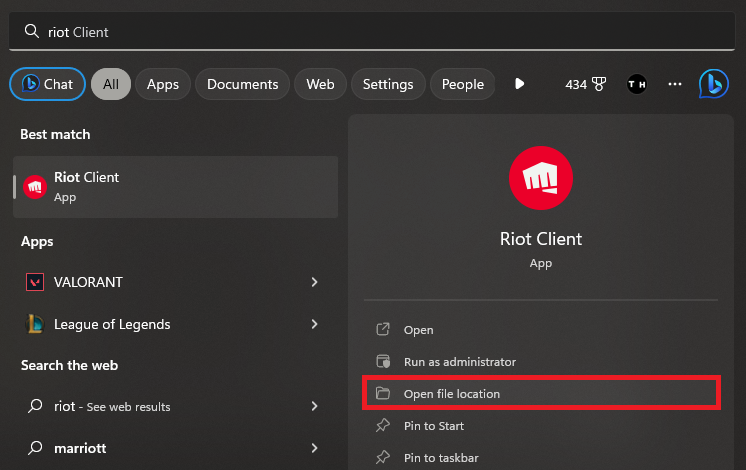
- Delete leftover Riot Client folders from
C:Riot Games,%localappdata%, and%programdata%only if no other Riot game needs them. - Search Windows for Riot Client. If only a shortcut remains, right-click it, choose Open file location, and remove the leftover Riot Games shortcut folder.
The biggest mistake is deleting the Riot Client folder first, then trying to uninstall from Windows afterward. That can leave Windows pointing to a missing uninstaller. If you already did that and the app entry is broken, reinstalling the Riot Client or League temporarily, restarting, then uninstalling in the proper order can restore the missing uninstall path.
Riot Client removal has its own small traps, especially when shortcuts remain after the main files are gone. This walkthrough is useful if you want the client itself removed after League is already uninstalled.
Once Riot Client is gone, restart before checking storage again. Windows can hold temporary files, services, or locked folders until the next boot.
How to remove Riot Vanguard too
Players searching how to uninstall League of Legends often forget Riot Vanguard because it appears as a separate Windows app. Vanguard is Riot’s anti-cheat component, and removing League does not always remove Vanguard automatically. Riot’s Vanguard uninstall guidance explains both the normal app removal route and the command-line fallback for stubborn cases.
Use the normal method first:
- Press the Windows key.
- Type Installed apps or Add or remove programs.
- Search for Riot Vanguard.
- Choose Uninstall and confirm the prompt.
- Restart your PC.
You can also look for the Vanguard tray icon, right-click it, open the extra options menu, and uninstall from there if the option appears. If Vanguard will not uninstall normally, open Command Prompt as administrator and run these commands one at a time:
sc delete vgc sc delete vgkRestart after running the commands, then remove the Riot Vanguard app or delete the remaining C:Program FilesRiot Vanguard folder if Windows leaves it behind. Do not remove Riot Vanguard if you plan to launch League again immediately. Current League installations on Windows need Vanguard, so the game will require it again after a reinstall. If that leads to errors later, our Riot Vanguard error codes guide can help you work through them.
How to uninstall League of Legends on Mac
How to uninstall League of Legends on Mac is cleaner than Windows in some ways, but a full reset still needs more than dragging the app to Trash. Riot’s League reinstall instructions include removing the app from Applications and deleting the shared Riot Games folder.
- Quit League of Legends and the Riot Client.
- Open Finder.
- Go to Applications.
- Drag League of Legends to the Trash.
- Press Command + Shift + G.
- Go to
/Users/Shared/Riot Games. - Move the Riot Games folder to the Trash if you want a clean removal.
- Empty the Trash.
- Restart your Mac before reinstalling or checking for leftovers.
If you are uninstalling to reinstall, download a fresh copy from the official League of Legends download page. On Mac, make sure the app is moved to Applications before launching it. Running League directly from the mounted installer window can cause install and patching problems.
Do you need a League of Legends removal tool?
Most players do not need a League of Legends removal tool. Built-in Windows and macOS tools are safer for a normal uninstall, and the manual folder cleanup above is enough for most clean reinstall jobs.
A third-party uninstaller only makes sense when Windows cannot remove the app entry, the original uninstaller is missing, or League of Legends not uninstalling has become a repeated problem after restarts. Even then, use caution. Create a restore point, read each prompt, and avoid tools that bundle driver updates, browser changes, or unrelated system cleaners.
For most fixes, the better path is simple: uninstall the game, remove cache folders, restart, and reinstall from a fresh official installer. Our broader League guides can help if you are deciding whether the problem is worth a reinstall or has a more specific fix.
Fix League of Legends uninstall issues
If you came here because League of Legends is not uninstalling, slow down before deleting folders by hand. Fix the stuck uninstall first, then clean up leftovers. These are the most common problems and the cleanest fixes.
Riot Client is still running
This is the most common reason the uninstall fails. Open the system tray, right-click Riot Client, and choose Exit. If it stays open, use Task Manager to end Riot Client, RiotClientServices.exe, RiotClientUx.exe, and LeagueClient.exe. Then try to uninstall League of Legends again.
The uninstall button does nothing
Restart Windows and try again before launching League, Riot Client, Discord overlays, recording software, or any game booster. If the uninstall still does nothing, open Control Panel, go to Programs and Features, and check whether League appears there as an older uninstall entry.
League still appears after uninstalling
You may have a second installation on another drive. Search your drives for LeagueClient.exe, League of Legends, and Riot Games. If you find another install folder, confirm it belongs to League before deleting it.
Windows says the uninstall file cannot be found
This usually happens when the game folder was deleted before Windows could run the uninstaller. The cleanest fix is often to reinstall League or Riot Client into the same location, restart, then uninstall through Windows properly. After that, delete leftovers manually.
Riot Client will not uninstall
Remove League and any other Riot games first. Riot Client may refuse to uninstall while it still detects Riot games on the system. If you already deleted the game files, reinstalling and uninstalling in the right order can be cleaner than chasing broken shortcuts.
Vanguard remains after League is gone
Uninstall Riot Vanguard separately from Installed apps, then restart. If the app entry is stuck, use the administrator Command Prompt commands listed above, restart, and check C:Program FilesRiot Vanguard afterward.
You want to reinstall without bringing the same bug back
Delete old setup files, cache folders, and the remaining League install folder before reinstalling. Then restart and download the latest installer. Our LoL download page can help you get back to the right download route without reusing an outdated installer.
For more stuck-client fixes, patching problems, and related cleanup steps, visit our League troubleshooting hub before you wipe more than you need to.
What you should not delete
A clean uninstall does not mean deleting every folder with the word Riot in it without checking. Some files are shared, some are personal, and some are simply not related to League.
- Do not delete Riot folders if you still play another Riot game and are not ready to repair it.
- Do not delete the Documents League folder until you have copied replays you want to keep.
- Do not delete random Registry entries unless you have a backup and know exactly why you are doing it.
- Do not remove Riot Vanguard if you plan to launch League on Windows right after the cleanup.
- Do not reuse an old installer if the point of uninstalling was to fix corrupted setup or patch files.
That caution matters because how to uninstall League of Legends is not just about clearing disk space. The goal is to leave Windows or macOS in a state where League is either fully gone or ready for a clean reinstall, not half-broken.
Frequently asked questions about How to uninstall League of Legends
Does uninstalling League of Legends delete my Riot account?
No. Uninstalling League only removes local files from your computer. Your Riot account, skins, champions, ranked history, purchases, and account level are tied to your Riot account, not the installed game folder.
Does uninstalling League delete my settings?
A normal uninstall may leave some local settings behind. A clean uninstall that deletes League and Riot folders can reset settings, config files, logs, cache, and saved replays. Back up anything important before deleting folders manually.
Can I delete the Riot Games folder?
Yes, but only after checking what is inside it. The Riot Games folder may contain League, Riot Client, old installers, or files used by other Riot games. If League is the only Riot game on the PC, deleting the leftover folder after uninstalling is usually fine.
Why is League of Legends not uninstalling?
The most common reason is that Riot Client or a League process is still running. Exit Riot Client from the system tray, end Riot processes in Task Manager, restart the PC, then try again.
Do I have to uninstall Riot Client too?
No. You only need to uninstall Riot Client if you are done with all Riot games on that computer. If you still play another Riot title, leaving Riot Client installed can prevent extra repairs later.
Do I have to uninstall Riot Vanguard too?
Only if you want Riot’s anti-cheat removed from your Windows PC as well. If you remove Vanguard and later reinstall League, Windows League installations will need Vanguard again before the game can run.
Is there an official League of Legends removal tool?
There is no special removal tool required for most players. Windows Installed apps, macOS Applications, and the manual folder cleanup steps in this guide handle most uninstall and reinstall cases safely.
Can I reinstall League after a clean uninstall?
Yes. Restart first, download the latest installer from Riot, and install fresh. If old settings were the problem, avoid copying old config folders back into the new installation.
Leave League fully removed or ready for a fresh start
How to uninstall League of Legends comes down to order. Close Riot Client, uninstall League through Windows or Finder, restart when needed, then delete leftover folders only after the normal uninstall is done. If you want Riot gone completely, remove Riot Client and Riot Vanguard separately instead of assuming the League uninstall will handle both.
If the uninstall was part of a bigger fix, continue with our League troubleshooting, practical League guides, and Riot Vanguard error codes resources. If you are stepping away from the game, your time spent on LoL can give the choice more context. If you come back later, start from the LoL download route and use a fresh installer instead of reviving an old broken setup file.